




Did you know…?
As an admin, you can search for and review learner content without impacting your personal learning library.
📍 Tip: Be sure you are searching and reviewing the content from within Learning Management (Admin)
To search and find content:
Use the search bar in Learning Management to search for specific courses or skills in the search bar, browse courses in Topics, or find content that is relevant to specific jobs in Recommendations by Job Title.
LinkedIn Learning has a wide variety of courses, learning paths, and collection for admins to choose from. You can use Learning Management to find content that best suits the needs of your organization.
-
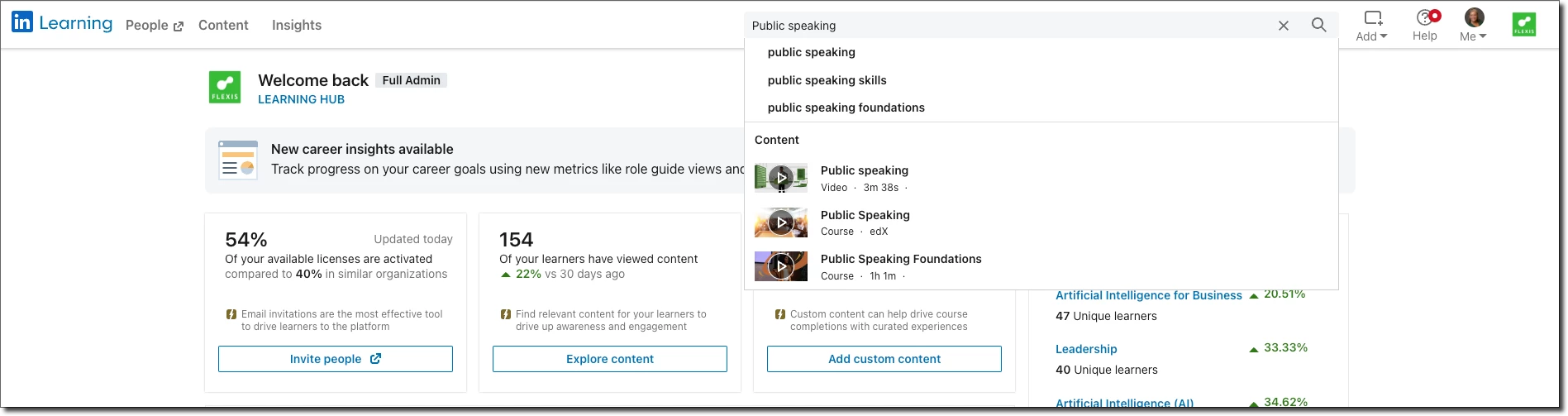
Enter the topic, skill, course, video, group, or people you’re searching for in the Search bar on the navigation pane.
-
From your search results, you can use the filters on the left to narrow your search by:
- Content by: Select a specific source of content.
- Type: Select courses, videos, articles, learning paths, links, documents, or learning collections.
- Level: Select beginner, intermediate, or advanced.
- Time to complete: Allows you to choose the duration of your content.
- Software: Select a specific software.
- Subjects & Topics: Select a specific subject or topic area.
- Custom Tags: Select a specific custom tag from your organization.
- Continuing Education Units: Select NASBA, PMI, SHRM, HRCI, IIBA, or CompTIA.
To learn more ways you can search and find content on Learning, view this Help Center article and explore the Learning Center catalog for guided learning paths, tip sheets, tutorials, webinars and more.